Installing X-late from Website
Deze inhoud is nog niet vertaald.
Overview
Section titled “Overview”This tutorial shows you how to install X-late directly from the official X-late website at bridgechannels.bot. This method is ideal for users who want to learn more about X-late’s features and pricing before installation, or who prefer to start the installation process from outside of Slack.
Prerequisites
Section titled “Prerequisites”- Slack workspace with admin permissions to install apps
- Web browser access to visit the X-late website
- Ability to authorize apps in your Slack workspace
Installation Steps
Section titled “Installation Steps”Step 1: Visit the X-late Website
Section titled “Step 1: Visit the X-late Website”Navigate to the official X-late website at https://bridgechannels.bot in your web browser.
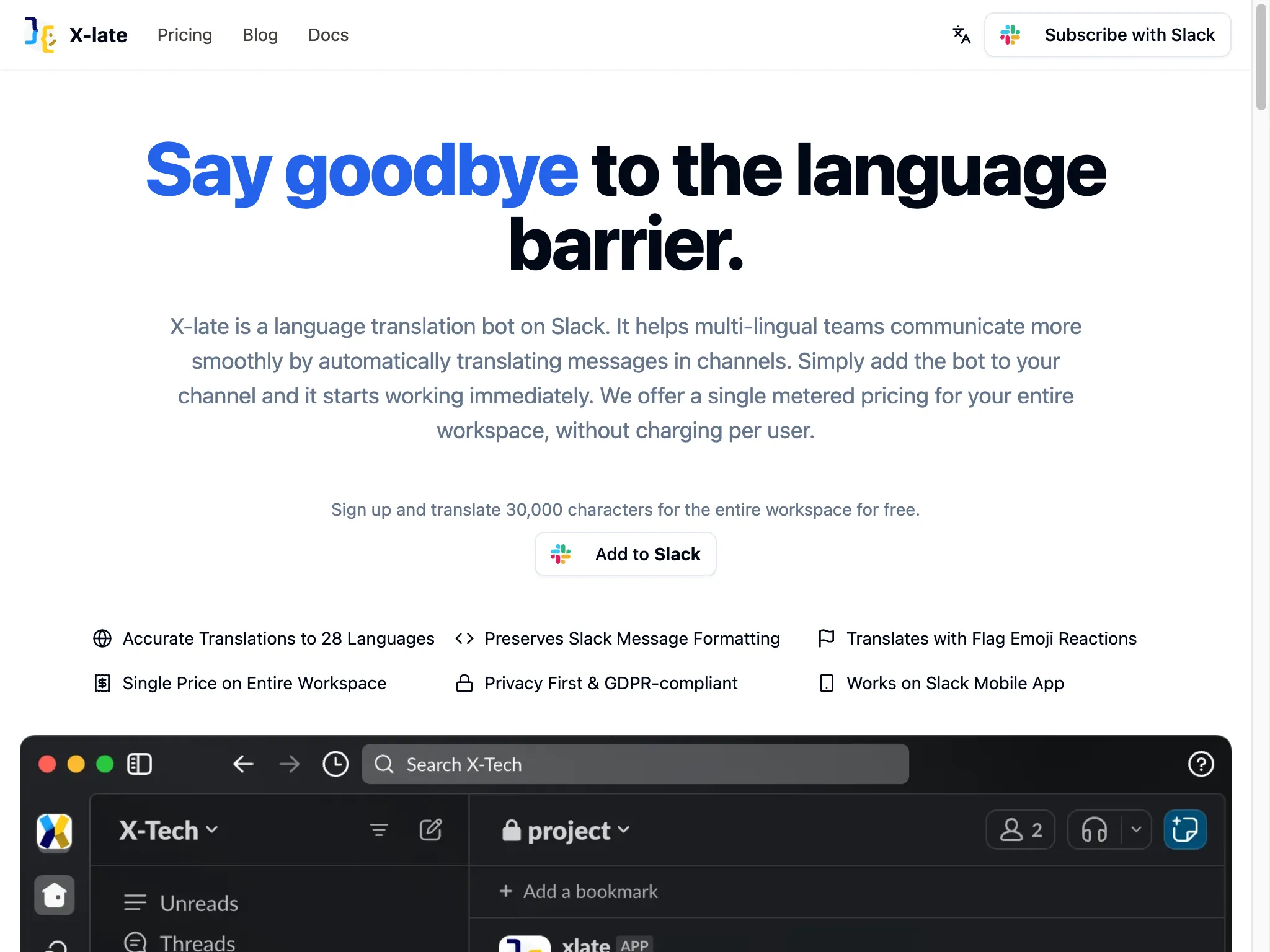
What you see on the website:
- Clear value proposition: “Say goodbye to the language barrier”
- Description of X-late as a language translation bot for Slack
- Key features and benefits prominently displayed
- Prominent “Add to Slack” button for easy installation
- Free trial offer: “Sign up and translate 30,000 characters for the entire workspace for free”
Key features highlighted:
- ✅ Accurate Translations to 37 Languages - Wide language support
- ✅ Preserves Slack Message Formatting - Maintains original message structure
- ✅ Translates with Flag Emoji Reactions - Manual translation on demand
- ✅ Single Price on Entire Workspace - Cost-effective pricing model
- ✅ Privacy First & GDPR-compliant - Secure and compliant
- ✅ Works on Slack Mobile App - Full mobile compatibility
Step 2: Start Installation Process
Section titled “Step 2: Start Installation Process”Click the “Add to Slack” button on the website to begin the installation process. This will redirect you to Slack’s authorization system.
Benefits of installing from the website:
- Review detailed features and pricing information first
- Understand the app’s capabilities before installation
- Access to comprehensive product information
- Direct path to installation with one click
Step 3: Slack OAuth Authorization
Section titled “Step 3: Slack OAuth Authorization”After clicking “Add to Slack”, you’ll be redirected to Slack’s OAuth authorization page where you can grant X-late the necessary permissions.
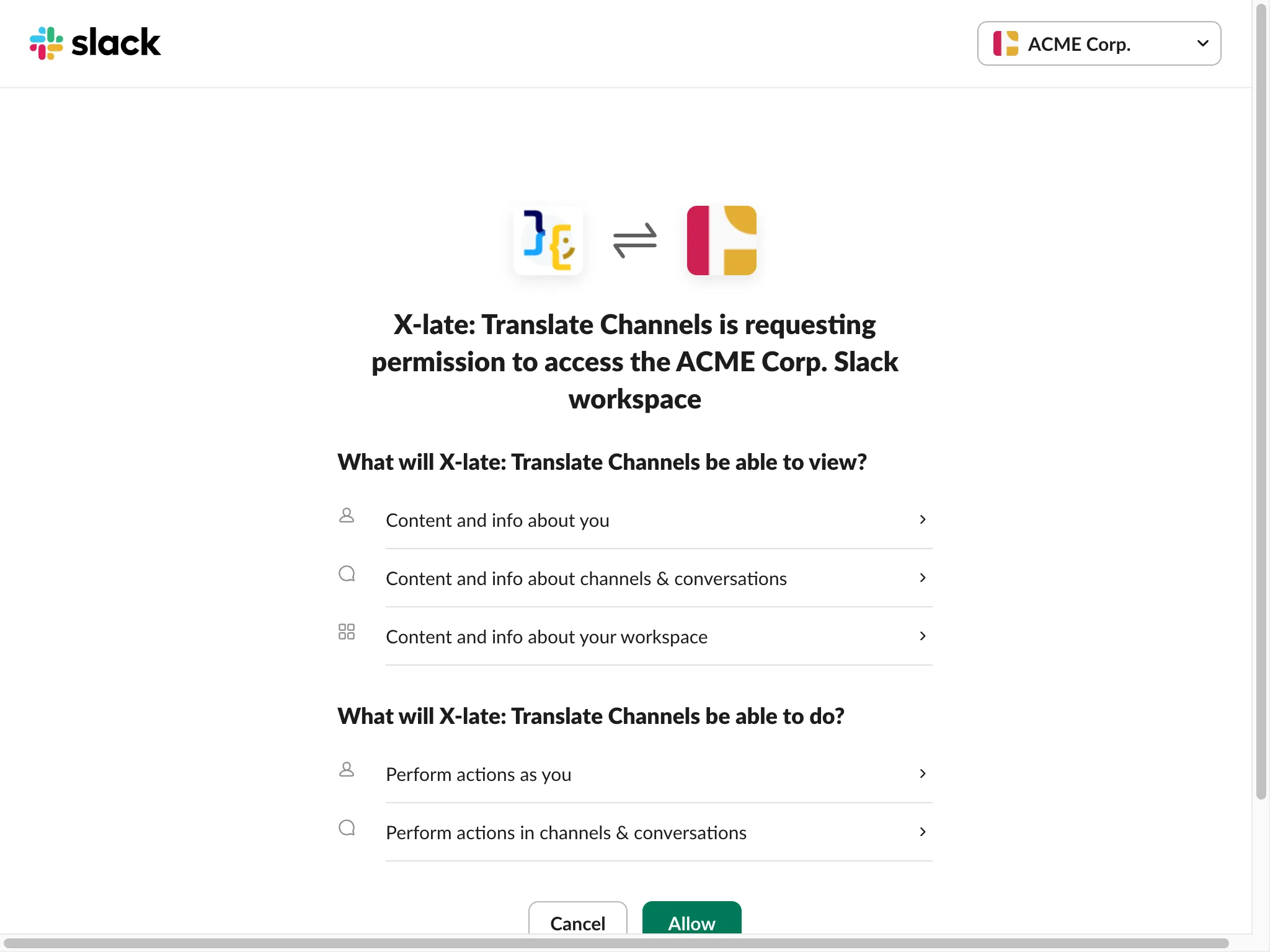
Authorization page details:
- Clear visual identification of X-late connecting to your workspace
- Your workspace name prominently displayed (e.g., “ACME Corp.”)
- Detailed permissions that X-late will request
Permissions X-late requests:
What will X-late: Translate Channels be able to view?
- 👤 Content and info about you - Basic user information for personalization
- 💬 Content and info about channels & conversations - Access to messages for translation
- 🏢 Content and info about your workspace - Workspace details for proper integration
What will X-late: Translate Channels be able to do?
- ⚡ Perform actions as you - Post translations on your behalf
- 💬 Perform actions in channels & conversations - Send translated messages to channels
Important: These permissions are necessary for X-late to:
- Detect messages that need translation
- Post translations as threaded replies
- Respond to emoji reactions for manual translations
- Provide usage statistics and workspace management
Step 4: Grant Authorization
Section titled “Step 4: Grant Authorization”Review the permissions carefully and click the “Allow” button to complete the installation.
Before clicking Allow, ensure:
- You have admin permissions in the selected workspace
- You understand what X-late will be able to access
- You’re comfortable with the stated permissions
- You’re installing to the correct workspace
Step 5: Installation Complete
Section titled “Step 5: Installation Complete”After granting authorization, X-late will be installed in your Slack workspace and you’ll be redirected back to Slack or receive a confirmation message.
What happens next:
- X-late appears in your Slack workspace’s Apps section
- You’ll receive a welcome message from X-late with setup instructions
- The app is ready to be added to channels for translation
- Your 30,000 character free trial begins
Post-Installation Setup
Section titled “Post-Installation Setup”Once X-late is installed from the website:
1. Find X-late in Slack
Section titled “1. Find X-late in Slack”- Look for X-late in your Apps section in the Slack sidebar
- You should see a notification indicating a new message
2. Read the Welcome Message
Section titled “2. Read the Welcome Message”- Click on X-late to open the direct message conversation
- Read the comprehensive onboarding message
- Follow the setup instructions provided
3. Add X-late to Channels
Section titled “3. Add X-late to Channels”- Use the
/invite @xlatecommand in channels where you want translation - X-late will start automatically translating non-English messages
4. Explore Features
Section titled “4. Explore Features”- Try manual translations using flag emoji reactions
- Visit the Home tab to see usage statistics
- Configure channel-specific settings if needed
Key Advantages of Website Installation
Section titled “Key Advantages of Website Installation”✅ Informed Decision Making
Section titled “✅ Informed Decision Making”- Review all features and capabilities before installation
- Understand pricing and trial limitations upfront
- Access comprehensive product information
- Compare with other translation solutions
✅ Marketing Context
Section titled “✅ Marketing Context”- Learn about X-late’s unique value proposition
- Understand how it solves multi-lingual team challenges
- See feature comparisons and benefits
- Access customer testimonials and use cases
✅ Direct Installation Path
Section titled “✅ Direct Installation Path”- Single click from website to Slack authorization
- Streamlined process from discovery to installation
- No need to search within Slack’s app directory
- Immediate access to trial and subscription information
✅ External Reference
Section titled “✅ External Reference”- Easy to share installation link with team members
- Bookmarkable URL for future reference
- Access to documentation and support resources
- Direct path to pricing and subscription management
Troubleshooting
Section titled “Troubleshooting”If the “Add to Slack” button doesn’t work:
- Ensure you’re logged into Slack in the same browser
- Check that pop-ups aren’t blocked for the X-late website
- Try refreshing the page and clicking again
- Use an incognito/private browser window
If authorization fails:
- Verify you have admin permissions in your workspace
- Check that your workspace allows third-party app installations
- Ensure you’re selecting the correct workspace during authorization
- Try the installation process again after a few minutes
If you can’t find X-late after installation:
- Refresh your Slack client (web or desktop app)
- Look in the Apps section of your sidebar
- Check for any error messages or notifications
- Contact your workspace administrator if needed
Next Steps
Section titled “Next Steps”After successfully installing X-late from the website:
- Complete the onboarding process - Follow the X-late Onboarding Guide
- Add X-late to channels - Start with your most active multi-lingual channels
- Test translation features - Try both automatic and manual translations
- Monitor your usage - Keep track of your free trial character limit
- Consider subscription - Upgrade when you approach your usage limits
- Train your team - Share the onboarding guide with team members
Comparison with Other Installation Methods
Section titled “Comparison with Other Installation Methods”Website Installation vs. Slack App Directory:
- Website: Better for research and feature discovery
- App Directory: Faster if you already know you want X-late
When to choose website installation:
- First time learning about X-late
- Need to understand pricing before installation
- Want to see detailed feature comparisons
- Installing for a team and need to justify the decision
- Prefer comprehensive product information before commitment
Installing X-late from the website provides the most comprehensive introduction to the app’s capabilities while maintaining a simple, one-click installation process.