Installing Vorbee from Website
Esta página aún no está disponible en tu idioma.
Overview
Section titled “Overview”This tutorial shows you how to install Vorbee directly from the official Vorbee website at bridgechannels.bot. This method is ideal for users who want to learn more about Vorbee’s features and pricing before installation, or who prefer to start the installation process from outside of Slack.
Prerequisites
Section titled “Prerequisites”- Slack workspace with admin permissions to install apps
- Web browser access to visit the Vorbee website
- Ability to authorize apps in your Slack workspace
Installation Steps
Section titled “Installation Steps”Step 1: Visit the Vorbee Website
Section titled “Step 1: Visit the Vorbee Website”Navigate to the official Vorbee website at https://bridgechannels.bot in your web browser.
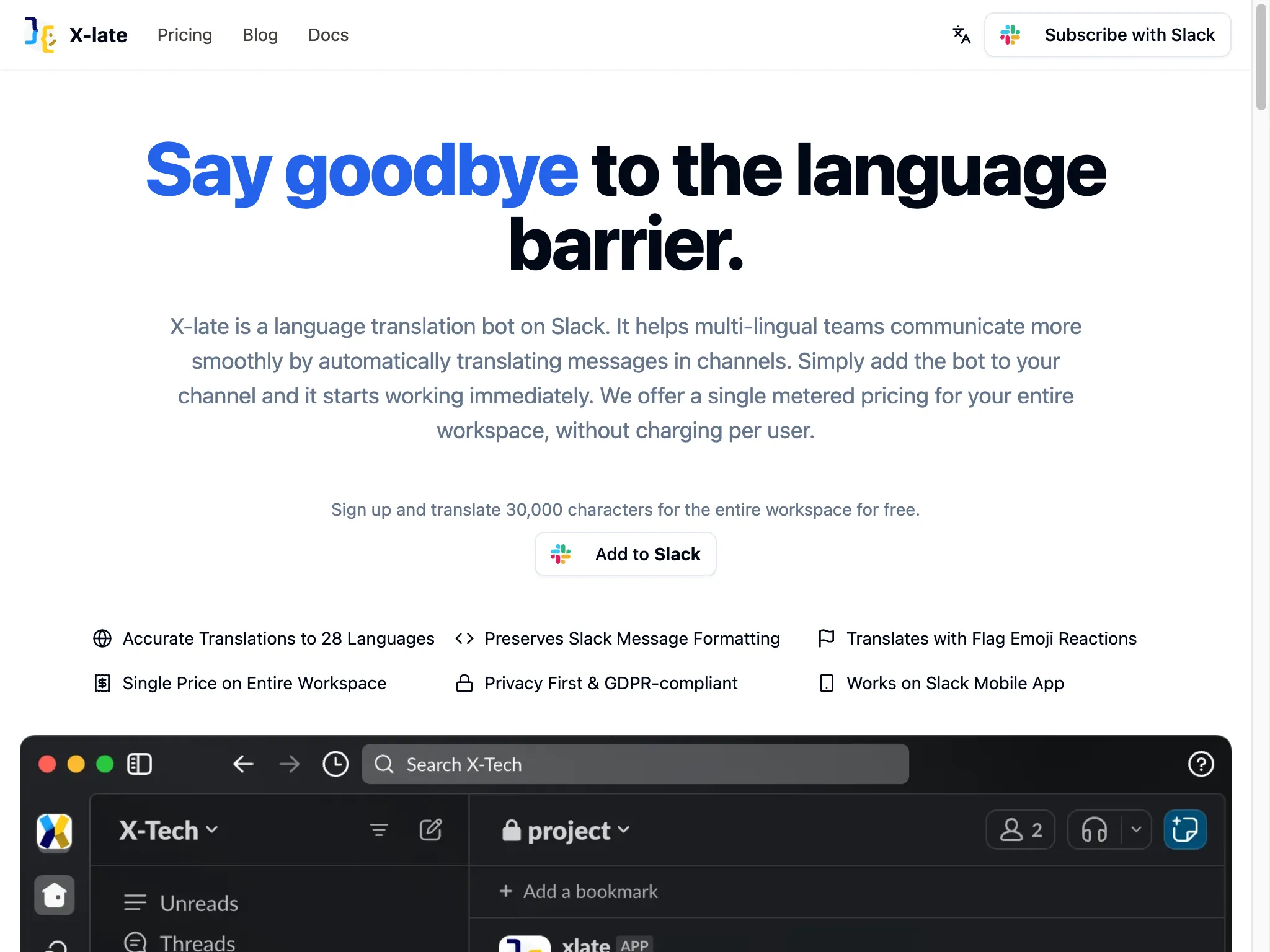
What you see on the website:
- Clear value proposition: “Say goodbye to the language barrier”
- Description of Vorbee as a language translation bot for Slack
- Key features and benefits prominently displayed
- Prominent “Add to Slack” button for easy installation
- Free trial offer: “Sign up and translate 30,000 characters for the entire workspace for free”
Key features highlighted:
- ✅ Accurate Translations to 37 Languages - Wide language support
- ✅ Preserves Slack Message Formatting - Maintains original message structure
- ✅ Translates with Flag Emoji Reactions - Manual translation on demand
- ✅ Single Price on Entire Workspace - Cost-effective pricing model
- ✅ Privacy First & GDPR-compliant - Secure and compliant
- ✅ Works on Slack Mobile App - Full mobile compatibility
Step 2: Start Installation Process
Section titled “Step 2: Start Installation Process”Click the “Add to Slack” button on the website to begin the installation process. This will redirect you to Slack’s authorization system.
Benefits of installing from the website:
- Review detailed features and pricing information first
- Understand the app’s capabilities before installation
- Access to comprehensive product information
- Direct path to installation with one click
Step 3: Slack OAuth Authorization
Section titled “Step 3: Slack OAuth Authorization”After clicking “Add to Slack”, you’ll be redirected to Slack’s OAuth authorization page where you can grant Vorbee the necessary permissions.
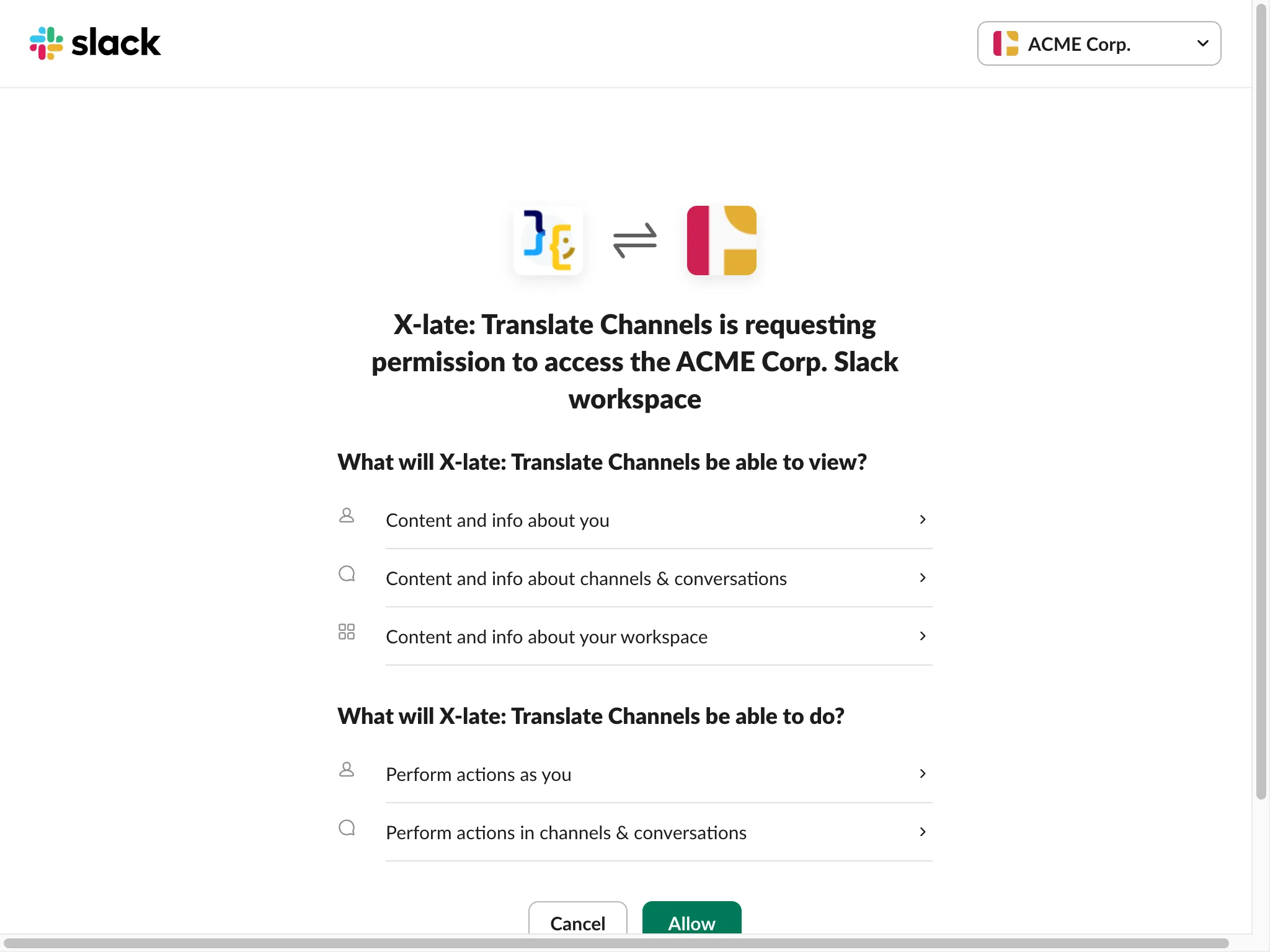
Authorization page details:
- Clear visual identification of Vorbee connecting to your workspace
- Your workspace name prominently displayed (e.g., “ACME Corp.”)
- Detailed permissions that Vorbee will request
Permissions Vorbee requests:
What will Vorbee: Translate Channels be able to view?
- 👤 Content and info about you - Basic user information for personalization
- 💬 Content and info about channels & conversations - Access to messages for translation
- 🏢 Content and info about your workspace - Workspace details for proper integration
What will Vorbee: Translate Channels be able to do?
- ⚡ Perform actions as you - Post translations on your behalf
- 💬 Perform actions in channels & conversations - Send translated messages to channels
Important: These permissions are necessary for Vorbee to:
- Detect messages that need translation
- Post translations as threaded replies
- Respond to emoji reactions for manual translations
- Provide usage statistics and workspace management
Step 4: Grant Authorization
Section titled “Step 4: Grant Authorization”Review the permissions carefully and click the “Allow” button to complete the installation.
Before clicking Allow, ensure:
- You have admin permissions in the selected workspace
- You understand what Vorbee will be able to access
- You’re comfortable with the stated permissions
- You’re installing to the correct workspace
Step 5: Installation Complete
Section titled “Step 5: Installation Complete”After granting authorization, Vorbee will be installed in your Slack workspace and you’ll be redirected back to Slack or receive a confirmation message.
What happens next:
- Vorbee appears in your Slack workspace’s Apps section
- You’ll receive a welcome message from Vorbee with setup instructions
- The app is ready to be added to channels for translation
- Your 30,000 character free trial begins
Post-Installation Setup
Section titled “Post-Installation Setup”Once Vorbee is installed from the website:
1. Find Vorbee in Slack
Section titled “1. Find Vorbee in Slack”- Look for Vorbee in your Apps section in the Slack sidebar
- You should see a notification indicating a new message
2. Read the Welcome Message
Section titled “2. Read the Welcome Message”- Click on Vorbee to open the direct message conversation
- Read the comprehensive onboarding message
- Follow the setup instructions provided
3. Add Vorbee to Channels
Section titled “3. Add Vorbee to Channels”- Use the
/invite @xlatecommand in channels where you want translation - Vorbee will start automatically translating non-English messages
4. Explore Features
Section titled “4. Explore Features”- Try manual translations using flag emoji reactions
- Visit the Home tab to see usage statistics
- Configure channel-specific settings if needed
Key Advantages of Website Installation
Section titled “Key Advantages of Website Installation”✅ Informed Decision Making
Section titled “✅ Informed Decision Making”- Review all features and capabilities before installation
- Understand pricing and trial limitations upfront
- Access comprehensive product information
- Compare with other translation solutions
✅ Marketing Context
Section titled “✅ Marketing Context”- Learn about Vorbee’s unique value proposition
- Understand how it solves multi-lingual team challenges
- See feature comparisons and benefits
- Access customer testimonials and use cases
✅ Direct Installation Path
Section titled “✅ Direct Installation Path”- Single click from website to Slack authorization
- Streamlined process from discovery to installation
- No need to search within Slack’s app directory
- Immediate access to trial and subscription information
✅ External Reference
Section titled “✅ External Reference”- Easy to share installation link with team members
- Bookmarkable URL for future reference
- Access to documentation and support resources
- Direct path to pricing and subscription management
Troubleshooting
Section titled “Troubleshooting”If the “Add to Slack” button doesn’t work:
- Ensure you’re logged into Slack in the same browser
- Check that pop-ups aren’t blocked for the Vorbee website
- Try refreshing the page and clicking again
- Use an incognito/private browser window
If authorization fails:
- Verify you have admin permissions in your workspace
- Check that your workspace allows third-party app installations
- Ensure you’re selecting the correct workspace during authorization
- Try the installation process again after a few minutes
If you can’t find Vorbee after installation:
- Refresh your Slack client (web or desktop app)
- Look in the Apps section of your sidebar
- Check for any error messages or notifications
- Contact your workspace administrator if needed
Next Steps
Section titled “Next Steps”After successfully installing Vorbee from the website:
- Complete the onboarding process - Follow the Vorbee Onboarding Guide
- Add Vorbee to channels - Start with your most active multi-lingual channels
- Test translation features - Try both automatic and manual translations
- Monitor your usage - Keep track of your free trial character limit
- Consider subscription - Upgrade when you approach your usage limits
- Train your team - Share the onboarding guide with team members
Comparison with Other Installation Methods
Section titled “Comparison with Other Installation Methods”Website Installation vs. Slack App Directory:
- Website: Better for research and feature discovery
- App Directory: Faster if you already know you want Vorbee
When to choose website installation:
- First time learning about Vorbee
- Need to understand pricing before installation
- Want to see detailed feature comparisons
- Installing for a team and need to justify the decision
- Prefer comprehensive product information before commitment
Installing Vorbee from the website provides the most comprehensive introduction to the app’s capabilities while maintaining a simple, one-click installation process.