Vorbee Onboarding Guide
Esta página aún no está disponible en tu idioma.
Overview
Section titled “Overview”This comprehensive tutorial walks you through the complete Vorbee onboarding experience, from installation to using the translation features. Vorbee is an AI-powered translation bot that helps multi-lingual teams communicate seamlessly in Slack by automatically translating messages between 37+ languages.
Prerequisites
Section titled “Prerequisites”- Slack workspace with admin permissions (for installation)
- Basic understanding of Slack channels and messaging
Part 1: Post-Installation Experience
Section titled “Part 1: Post-Installation Experience”Step 1: Accessing Vorbee After Installation
Section titled “Step 1: Accessing Vorbee After Installation”Once Vorbee is installed in your Slack workspace, you’ll see it appear in the Apps section of your sidebar with a notification badge indicating there’s a welcome message waiting.
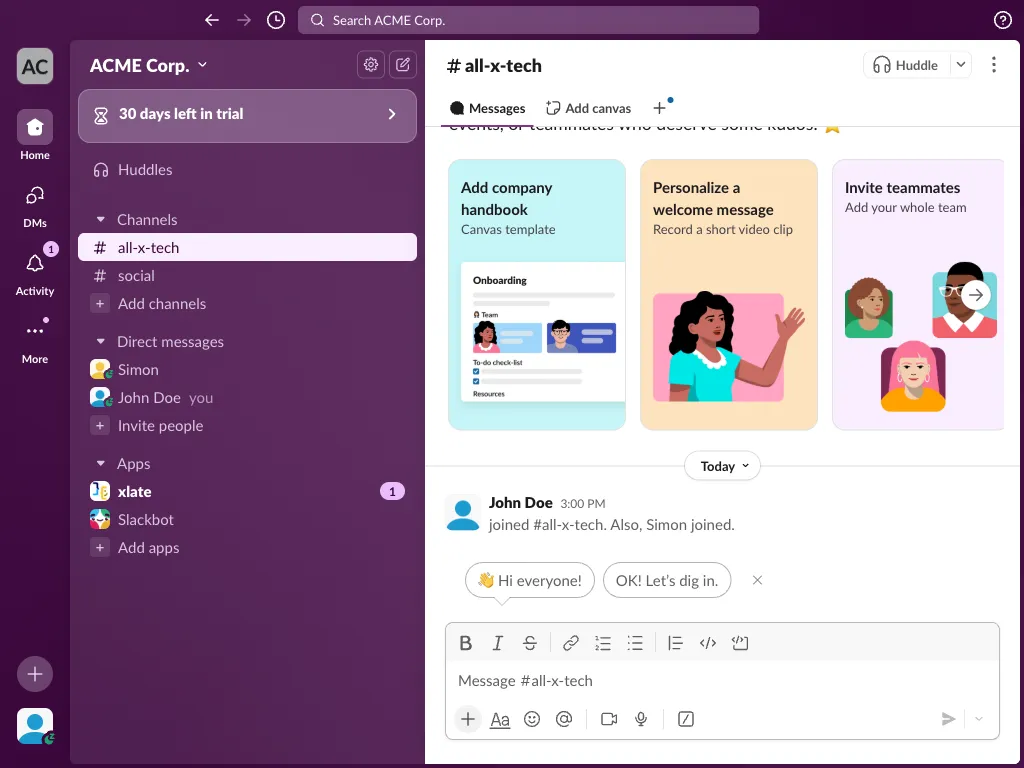
What you see:
- Vorbee appears in the Apps section of your sidebar
- A red notification badge (showing “1”) indicates there’s an unread message from the app
- The app is ready to be configured and used
Step 2: Reading the Welcome Message
Section titled “Step 2: Reading the Welcome Message”Click on Vorbee in your sidebar to open the direct message conversation and read the comprehensive welcome message.
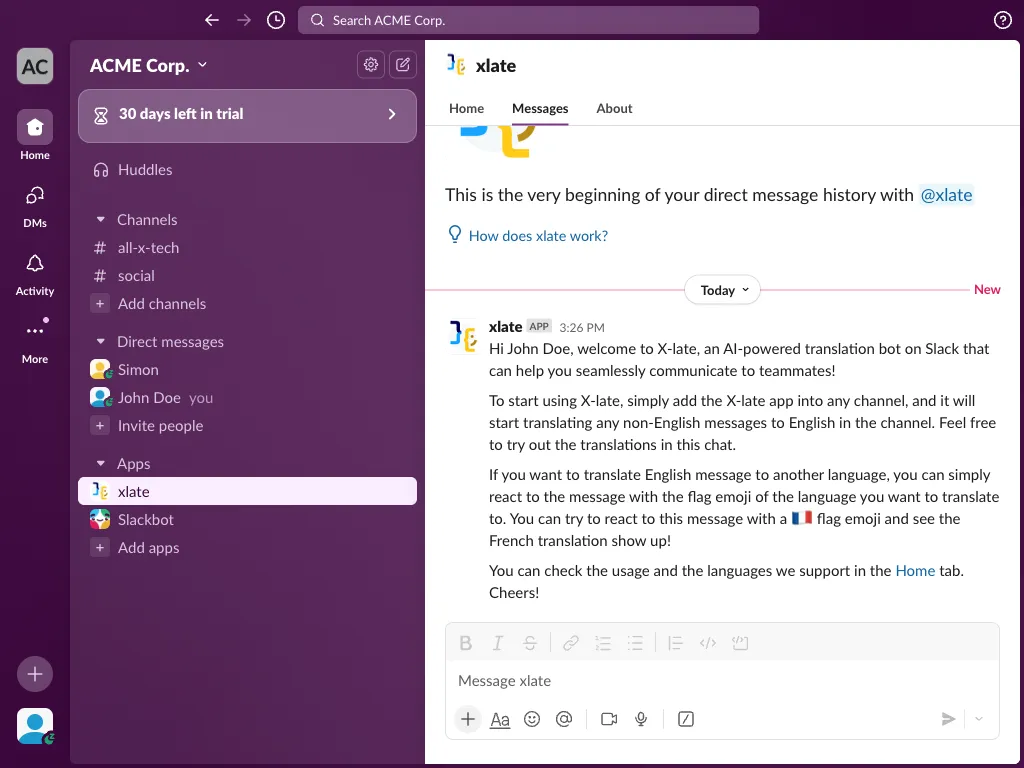
Key information in the welcome message:
- Personalized greeting to the user who installed the app
- Clear explanation of how Vorbee works for automatic translation
- Instructions for manual translation using flag emoji reactions
- Link to the Home tab for usage statistics and language support
Welcome message content:
“Hi John Doe, welcome to Vorbee, an AI-powered translation bot on Slack that can help you seamlessly communicate to teammates!
To start using Vorbee, simply add the Vorbee app into any channel, and it will start translating any non-English messages to English in the channel. Feel free to try out the translations in this chat.
If you want to translate English message to another language, you can simply react to the message with the flag emoji of the language you want to translate to. You can try to react to this message with a 🇫🇷 flag emoji and see the French translation show up!
You can check the usage and the languages we support in the Home tab. Cheers!”
Step 3: Exploring the Home Tab Settings
Section titled “Step 3: Exploring the Home Tab Settings”Navigate to the Home tab to view your Vorbee settings, usage statistics, and configuration options.
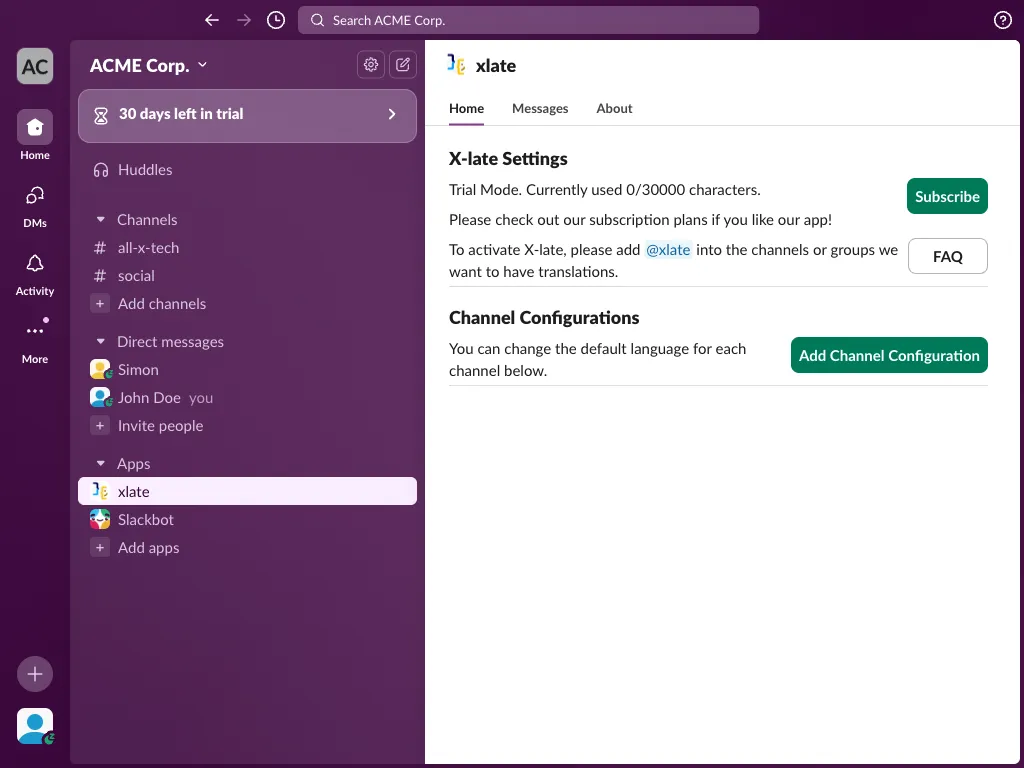
Home tab features:
- Trial Mode Status: Shows current usage (0/30,000 characters used)
- Subscribe Button: Easy access to subscription plans
- FAQ Button: Quick access to frequently asked questions
- Setup Instructions: Clear guidance on adding Vorbee to channels
- Channel Configurations: Manage default languages for specific channels
Key settings available:
- View current usage limits and trial status
- Access subscription options for unlimited usage
- Configure channel-specific translation preferences
- Add custom channel configurations for different default languages
Step 4: Viewing App Information
Section titled “Step 4: Viewing App Information”Check the About tab to learn more about Vorbee’s features, permissions, and additional resources.
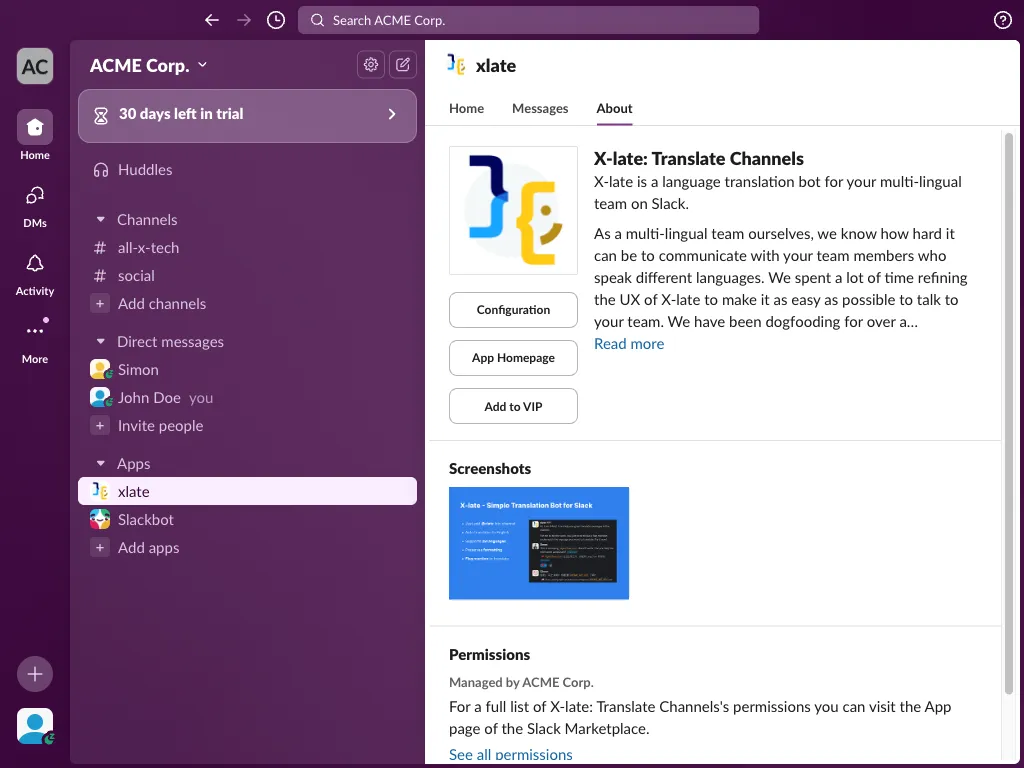
About tab includes:
- App Description: Details about Vorbee’s multi-lingual team focus
- Configuration Link: Direct access to app settings
- App Homepage: Link to the official Vorbee website
- Screenshots: Visual examples of the app in action
- Permissions: Information about what data Vorbee can access
- Management Info: Shows which workspace manages the app
Part 2: Adding Vorbee to Channels
Section titled “Part 2: Adding Vorbee to Channels”Step 5: Inviting Vorbee to a Channel
Section titled “Step 5: Inviting Vorbee to a Channel”To activate Vorbee’s translation features in a channel, you need to invite the app to that channel using the /invite @xlate command.
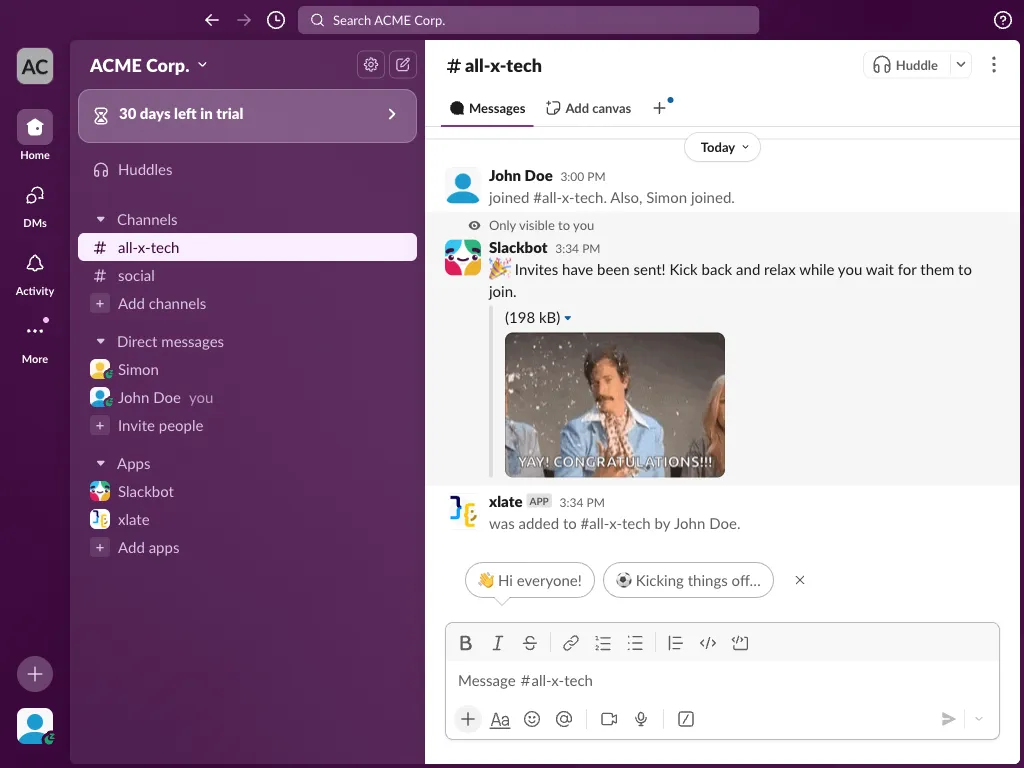
How to add Vorbee to a channel:
- Navigate to the desired channel (e.g., #general)
- Type
/invite @xlatein the message box - Press Enter to send the command
- Wait for confirmation that Vorbee has been added
Confirmation messages you’ll see:
- Slackbot confirmation: “Invites have been sent! Kick back and relax while you wait for them to join.”
- System message: “xlate was added to #general by [Your Name].”
Part 3: Using Translation Features
Section titled “Part 3: Using Translation Features”Step 6: Automatic Translation in Action
Section titled “Step 6: Automatic Translation in Action”Once Vorbee is added to a channel, it automatically detects and translates non-English messages to English for better team communication.
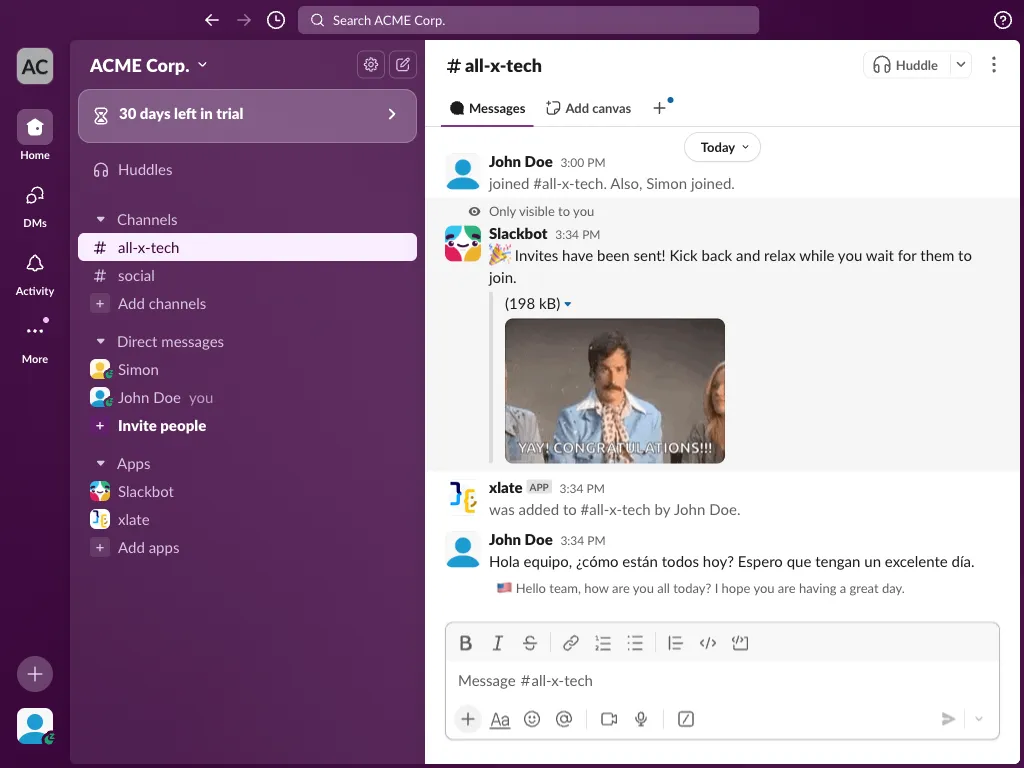
Translation example:
- Original Spanish: “Hola equipo, ¿cómo están todos hoy? Espero que tengan un excelente día.”
- Vorbee Translation: “Hello team, how are you all today? I hope you are having a great day.”
How automatic translation works:
- A team member posts a message in a non-English language
- Vorbee automatically detects the language
- The translation appears as a threaded reply under the original message
- All team members can see both the original and translated versions
Key Features Demonstrated
Section titled “Key Features Demonstrated”✅ Seamless Installation
Section titled “✅ Seamless Installation”- App appears immediately in sidebar after installation
- Clear notification system guides users to welcome message
✅ Comprehensive Onboarding
Section titled “✅ Comprehensive Onboarding”- Detailed welcome message explains all features
- Interactive suggestions (try reacting with flag emojis)
- Multiple information tabs (Home, Messages, About)
✅ Easy Channel Setup
Section titled “✅ Easy Channel Setup”- Simple
/invite @xlatecommand to add to channels - Clear confirmation messages
- No complex configuration required
✅ Automatic Translation
Section titled “✅ Automatic Translation”- Real-time detection of non-English content
- High-quality translations using AI
- Preserves original message while adding translation
✅ Usage Management
Section titled “✅ Usage Management”- Trial mode with generous character limits (30,000 characters)
- Clear usage tracking and subscription options
- Channel-specific configuration options
Next Steps
Section titled “Next Steps”After completing this onboarding process, you can:
- Add Vorbee to more channels using the same
/invite @xlatecommand - Try manual translations by reacting to messages with flag emojis
- Configure channel-specific settings in the Home tab
- Monitor usage and upgrade to a paid plan when needed
- Explore advanced features like custom language preferences per channel
Troubleshooting
Section titled “Troubleshooting”If Vorbee isn’t translating messages:
- Ensure the app has been added to the channel with
/invite @xlate - Check that the message is in a non-English language
- Verify you haven’t exceeded your usage limits
If you can’t find Vorbee in the sidebar:
- Refresh your Slack client
- Check the Apps section in your sidebar
- Contact your workspace admin if installation is needed
This completes the comprehensive Vorbee onboarding experience, showing users exactly what to expect from installation through active use of translation features.